Mudassir Ali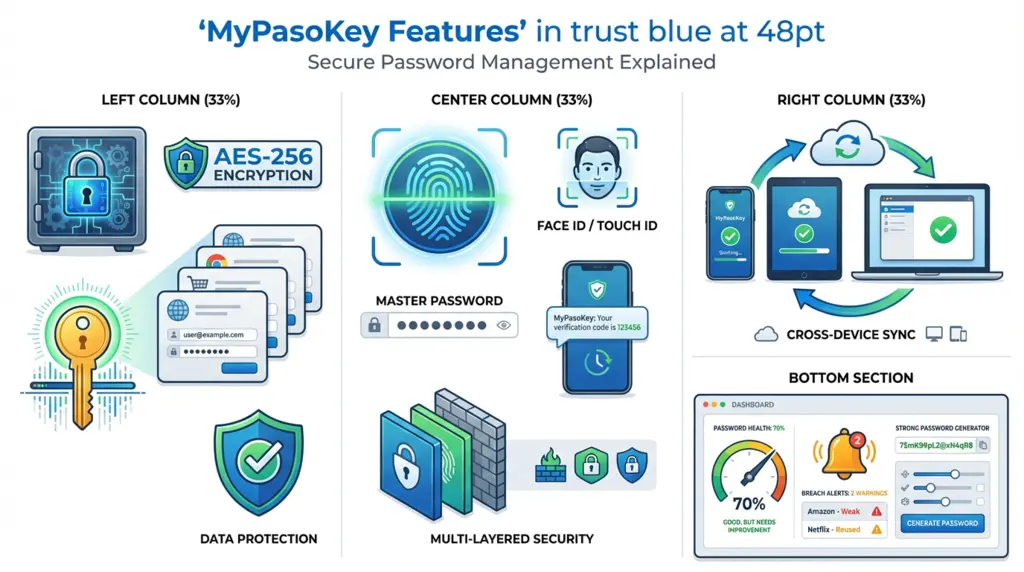
You’ve forgotten your Netflix password again. Your bank account uses a different one. Work requires password changes every 90 days. By the time you’re juggling 15 different combinations across 50+ accounts, you’re either writing them in a notebook (terrible idea) or reusing the same password everywhere (worse idea).
MyPasoKey enters this frustrating landscape promising to solve password chaos through encrypted storage, biometric authentication, and cross-device synchronization. But does it deliver on those promises better than established alternatives like 1Password, Dashlane, or Bitwarden? And more importantly, is mypasokey the right solution for your specific security needs and tech comfort level?
Understanding what mypasokey actually offers—its real strengths, honest limitations, and where it fits in the crowded password manager market—helps you make informed decisions about protecting your digital life.
What MyPasoKey Actually Is (And Isn’t)
MyPasoKey is a password management tool that makes life easier by keeping your passwords in one secure place and filling them in automatically where needed on your devices. Picture it as a super safe digital vault that is accessible only through a single master password that you define and keep in your memory.
The primary functionality operates like this: during the installation process, you set a single strong master password. From that point on, that is the only password you have to learn by heart. All other passwords—banking, social networking, work accounts, online stores, video services, and so forth—are kept inside mypasokey’s secure vault. If you go to a site that needs credentials, mypasokey will fill in your details automatically, so you will not have to type or recall them.
What it claims to offer:
- AES-256 encryption (bank-level security standard)
- Biometric authentication (fingerprint/facial recognition)
- Cross-device synchronization (desktop, tablet, smartphone)
- Automatic password generation (creating strong, unique passwords)
- Cloud-based backup (accessing passwords from anywhere)
- Phishing and dark web monitoring (alerts if credentials leak)
What it’s not:
- A replacement for two-factor authentication (you still need that separately)
- A guaranteed protection against all cyber threats (no tool is 100% secure)
- A solution for remembering your master password (lose that, lose everything)
- Free without limitations (full features typically require paid subscription)
The fundamental value proposition is simple: trade the burden of remembering dozens of passwords for the responsibility of protecting one very strong master password and keeping your mypasokey account secure.
How MyPasoKey Security Actually Works
Understanding mypasokey’s security architecture matters because you’re trusting it with access to your entire digital life.
AES-256 Encryption Explained: This is the same encryption standard banks and militaries use. AES-256 means your data gets scrambled into 256-bit encrypted code that would take current supercomputers billions of years to crack through brute force. When mypasokey stores your passwords, they’re encrypted on your device before uploading to cloud servers. The company never sees your unencrypted master password or stored credentials.
Zero-Knowledge Architecture: This technical term means mypasokey’s servers store only encrypted data that even the company’s own employees can’t decrypt. Your master password never leaves your device in unencrypted form. This protects you if mypasokey’s servers get hacked—the stolen data is useless without your master password.
Biometric Authentication: Instead of typing your master password every time, you can use fingerprint scans or facial recognition on supported devices. The biometric data stays on your device (not stored in mypasokey’s servers) and simply unlocks the locally-stored encryption key.
Multi-Device Synchronization Security: When you save a new password on your phone, mypasokey encrypts it, uploads it to secure servers, then downloads and decrypts it on your other devices—all without the password ever existing in readable form during transit.
This sounds reassuring, but reality includes important caveats. If you choose a weak master password (like “Password123!”), all this encryption becomes pointless. If you enable biometrics on a phone without screen lock, anyone accessing your device accesses your vault. If you don’t enable two-factor authentication for mypasokey itself, your account remains vulnerable to phishing.
Security tools only work as well as how you configure and use them.
The Practical Reality of Using MyPasoKey Daily
Technical specifications matter less than daily usability. Here’s how mypasokey actually functions when you’re just trying to log into your accounts.
Setup Process: You download mypasokey (app or browser extension), create your account with a strong master password, and begin importing existing passwords. Most password managers including mypasokey can import from browsers (Chrome, Firefox, Safari) where you’ve probably saved dozens of passwords already. This initial import takes 15-30 minutes depending on how many accounts you have.
The critical early decision: choosing your master password. Make it genuinely strong—at least 16 characters mixing uppercase, lowercase, numbers, and symbols. “MyPuppyName2019!” is weak. “7$mK9#pL2@xN4qR8” is strong but impossible to remember. Find the balance: perhaps a passphrase like “Purple-Elephant-Dancing-Moonlight-47!” that’s memorable to you but unpredictable to others.
Daily Login Experience: When you visit Amazon, Netflix, your bank, or any saved site, mypasokey’s browser extension detects the login page and offers to auto-fill credentials. One click (or biometric scan) fills both username and password. The actual login takes seconds instead of minutes hunting for the right password or resetting forgotten ones.
This works smoothly when it works. When it doesn’t—and this happens with any password manager—you face edge cases. Some banking sites block auto-fill for security reasons. Some company intranets don’t recognize the browser extension. Some two-factor authentication apps require manual code entry regardless. Mypasokey handles 90-95% of logins seamlessly; the remaining 5-10% require manual intervention.
Password Generation: Creating accounts becomes easier. Instead of inventing yet another password variation, you use mypasokey’s built-in generator to create random 16-20 character passwords you’ll never need to remember or type. The generator ensures each account gets a unique password, so if one gets compromised, your other accounts remain safe.
Organization Features: MyPasoKey typically offers folders or tags for categorizing passwords (Personal, Work, Financial, Shopping). Searchability makes finding specific credentials fast. You can also store secure notes (WiFi passwords, software license keys, security questions) alongside login credentials.
The daily reality: after an adjustment period of 1-2 weeks getting comfortable with the workflow, using mypasokey becomes automatic and genuinely saves time while improving security.
Where MyPasoKey Falls Short Compared to Competitors
Honesty requires acknowledging mypasokey’s limitations relative to established alternatives.
Market Position Challenges: MyPasoKey competes against 1Password (industry standard for 15+ years), Dashlane (known for excellent dark web monitoring), Bitwarden (open-source favorite), LastPass (largest user base despite past security incidents), and NordPass (from the NordVPN team).
These competitors have several advantages:
- Longer track records: 1Password has survived 15+ years without major breaches
- Larger security teams: More resources for threat detection and response
- More extensive integrations: Connections with more apps, browsers, and platforms
- Larger user communities: More tutorials, troubleshooting help, and shared knowledge
- Independent security audits: Public third-party penetration testing results
Feature Gaps: Depending on mypasokey’s specific implementation, it may lack:
- Emergency access (letting trusted contacts access your vault if you die or become incapacitated)
- Travel mode (temporarily hiding sensitive vaults when crossing borders)
- Advanced reporting (security health scores, reused password detection)
- Passwordless authentication support (emerging standards like WebAuthn, passkeys)
- Extensive legacy system compatibility (older operating systems or browsers)
Pricing Transparency: Established competitors publish clear pricing tiers with specific feature breakdowns. If mypasokey’s pricing structure seems vague or changes frequently, that’s a red flag suggesting business instability.
Customer Support Quality: Mature password managers offer 24/7 support, extensive knowledge bases, community forums, and responsive help teams. If mypasokey’s support consists primarily of email tickets with multi-day response times, that matters when you’re locked out of critical accounts.
Smart Ways to Evaluate If MyPasoKey Fits Your Needs
Rather than asking “Is mypasokey good or bad?” ask “Is it right for my specific situation?”
Consider mypasokey if:
- You currently manage passwords through browser auto-save or written lists (almost anything is an upgrade)
- You have 20-50 accounts and need basic password management without complex features
- You prefer newer tools over established ones (early adopter mindset)
- Budget is tight and mypasokey offers competitive pricing
- The interface feels intuitive to you personally (this varies by individual preference)
Choose established alternatives if:
- You manage 100+ accounts requiring sophisticated organization
- You handle sensitive business or financial data requiring proven security track records
- You need specific features (emergency access, travel mode, family sharing) that mypasokey lacks
- You want extensive third-party integrations with apps and services you use
- Peace of mind from 10-15 year track records matters more than potential cost savings
Skip password managers entirely if:
- You have only 5-10 accounts and can remember strong unique passwords for each
- Your threat model doesn’t justify the added complexity (though this applies to very few people)
- You’re uncomfortable with cloud storage and won’t maintain local-only solutions properly
Use multiple tools if:
- You separate personal and work passwords for organizational security policies
- You maintain air-gapped systems for ultra-sensitive credentials
- Different family members have different technical comfort levels
The right choice depends on your specific security needs, technical comfort, budget, and how many accounts you actually manage.
Critical Security Practices Regardless of Which Manager You Choose
MyPasoKey, 1Password, Bitwarden, or any password manager only works if you follow fundamental security practices.
Master Password Strength: Your master password is the key to everything. A strong master password is a condition for the security of the entire vault. Type at least 16 characters. Using a passphrase consisting of 4-5 random words, interspersing numbers and symbols: “Giraffe$Dance#Moon%Forest47” is one that is both strong and easy to remember.
Two-Factor Authentication: Activate 2FA on mypasokey account as well. This means, in spite of the master password being stolen, the vault will remain inaccessible without the second factor of authentication (a code sent to your phone is the most common). This is a security feature that cannot be compromised on when using password managers.
Regular Security Audits: Go through your passwords every 3 to 6 months. Use tools provided by mypasokey (when available) to check for weak, reused, or outdated passwords. Change passwords of major accounts (banking, email, work systems) to new strong passwords.
Device Security: Your password manager is only as secure as the devices it runs on. Use full-disk encryption on computers. Enable screen locks on phones. Keep operating systems and mypasokey itself updated with latest security patches. Don’t install mypasokey on shared or public computers.
Backup and Recovery Planning: What happens if you forget your master password? What if your phone with your authentication app gets stolen? Set up recovery methods mypasokey offers (recovery keys, security questions, backup codes) and store them securely offline. Tell one trusted person where to find recovery information if you become incapacitated.
Phishing Awareness: Password managers help prevent phishing by only auto-filling passwords on legitimate sites. If mypasokey doesn’t recognize a login page, that’s a warning. Don’t manually type passwords into suspicious sites even if they look legitimate.
These practices matter more than which specific password manager you choose.
FAQ
What is MyPasoKey and how does it work?
MyPasoKey is a strong password manager which keeps all your login data in a reliable and safe encrypted digital vault protected by one master password. Your information is encrypted through AES-256 and then it is synchronized on your devices. When you access sites, mypasokey quickly enters your user ID and password for you, helping you avoid both memory and typing hassles.
Is MyPasoKey safe and secure enough for banking passwords?
MyPasoKey uses AES-256 encryption and zero-knowledge architecture, meaning your passwords are encrypted before leaving your device and the company can’t access your unencrypted data. This meets security standards used by banks themselves. However, security also depends on choosing a strong master password, enabling two-factor authentication, and keeping your devices secure. No password manager is 100% risk-free, but properly configured mypasokey provides strong protection.
How much does MyPasoKey cost compared to alternatives?
Pricing varies and may change, but password managers typically cost $2-5/month for individual plans and $5-10/month for family plans. Free tiers usually limit you to one device or basic features. Compare mypasokey’s specific pricing against 1Password ($2.99/month individual), Bitwarden ($10/year premium), Dashlane ($4.99/month), and NordPass ($1.49/month promotional pricing). Free option Bitwarden offers excellent security without cost.
Can I share passwords safely with family using MyPasoKey?
Most password managers including mypasokey offer secure sharing features that let you share specific passwords with family members without revealing the actual password in plain text. Family plans typically allow 5-6 users with individual vaults plus shared vaults for household accounts like streaming services. Check mypasokey’s specific family sharing capabilities and compare against alternatives if this feature matters to you.
What happens if I forget my master password for MyPasoKey?
Due to zero-knowledge architecture, mypasokey cannot change your master password since they are not capable of decrypting your vault. As a result, losing your master password can be a permanent ban from your accounts. Take advantage of any recovery options available from mypasokey such as emergency access contacts, recovery keys, and security questions, and keep the backup information in a safe offline location before using it.
How is MyPasoKey different from just saving passwords in Chrome or Safari?
Browser password managers come with the advantage of convenience but with the disadvantage of being less secure. Usually, they do not have robust encryption, are incompatible with various browsers, provide limited organizing options, and do not come with security checks. MyPasokey on the other hand, provides exclusive AES-256 encryption, is compatible with all browsers and apps, includes the tools for password generation and auditing, and gives extra security features like breach monitoring and two-factor authentication support.
Should I switch from my current password manager to MyPasoKey?
Moving from one password manager to another is not that simple—it is a delineating process of exporting from your current tool, importing to mypasokey, reconfiguring browser extensions and apps, and getting used to new workflows. Only switch if mypasokey has certain benefits that your current tool does not have (for example, better pricing, features that you need, user-friendly interface). It will be more logical and practical to stick to a password manager if it is doing well for you and has the features you require rather than to switch for the sake of gaining a little benefit.
Making the Right Choice for Your Digital Security
MyPasoKey is entering a well-established market that already has some big players with longer histories. The decision whether or not to use it depends mainly on specific factors like your budget, the number of accounts you manage, the features that are really important to you and your willingness to use new rather than established tools.
For a user that is managing passwords by means of browser auto-save or written lists, MyPasoKey could be viewed as a great step up in security. The combination of encryption, password generation, and monitoring of data breaches offers a much greater level of protection than having no password manager at all.
For someone that is already working well with 1Password, Dashlane, or Bitwarden, switching to MyPasoKey would require pretty strong reasons to make the migration worthwhile. Unless MyPasoKey is going to provide certain features that you cannot live without, or it will be so much cheaper while still being just as secure, then sticking with your current reliable solution is most likely the way to go.
The key principle of password management will be the same no matter which tool you pick: it is always much better to use any reputable password manager with a strong master password and two-factor authentication than to reuse weak passwords across many accounts. So, keep your focus on developing good security practices in the manager of your choice that meets your needs and budget.
Go through mypasokey and assess it according to the criteria that can be confirmed—encryption standards, security audit results, feature lists, pricing transparency, customer support quality, and user reviews from independent sources. Make choices according to your own particular needs rather than the marketing hype of being “revolutionary” or “best in class.”
You are too important to digital security to risk it or to pick tools simply because of the way that their marketing copy sounds. Do the research, compare actual capabilities against your needs, and select the password management solution that balances security, usability, and cost for your specific situation.